

How to Prepare PPT (Step-by-Step Guide with AI Tools & Professional Templates)
in PowerPoint Tips, Presentation Tips on February 23, 2026Creating a great PowerPoint presentation is not about adding more slides — it’s about clarity, structure, and visual impact.
In this guide, you’ll learn how to prepare PPT step by step, using:
Professional templates from GreatPPT.com
AI tools like ChatGPT and Gemini
Practical presentation design principles
Whether you’re preparing a business pitch, school project, or marketing report, this guide will help you create a professional presentation faster and smarter.
Step 1: Define Your Presentation Goal
Before opening PowerPoint, clarify three things:
Who is your audience?
What is your objective? (Inform, persuade, pitch, educate)
What action do you want them to take?
Most bad presentations fail because the goal is unclear.
Use AI to Clarify Your Structure
You can use ChatGPT or Gemini to create a structured outline.

Example prompt:
Create a 10-slide presentation outline about digital marketing strategy for beginners.
AI can quickly generate a logical framework, saving you 30–60 minutes of planning time.
⚠ Important: Do not copy AI content directly. Always refine and simplify.
Step 2: Create a Clear PPT Structure
A strong presentation usually follows this format:
Slide 1 – Title
Slide 2 – Problem / Background
Slide 3–5 – Key Points
Slide 6–8 – Data / Examples
Slide 9 – Summary
Slide 10 – Call to Action
Make Slides Concise
Slides are not documents.
Instead of writing paragraphs:
❌ Long explanations
✅ Short bullet points (5–7 words per line)
You can ask AI:
Rewrite this content into concise slide bullet points (max 6 words per line).
This helps make your slides clean and readable.
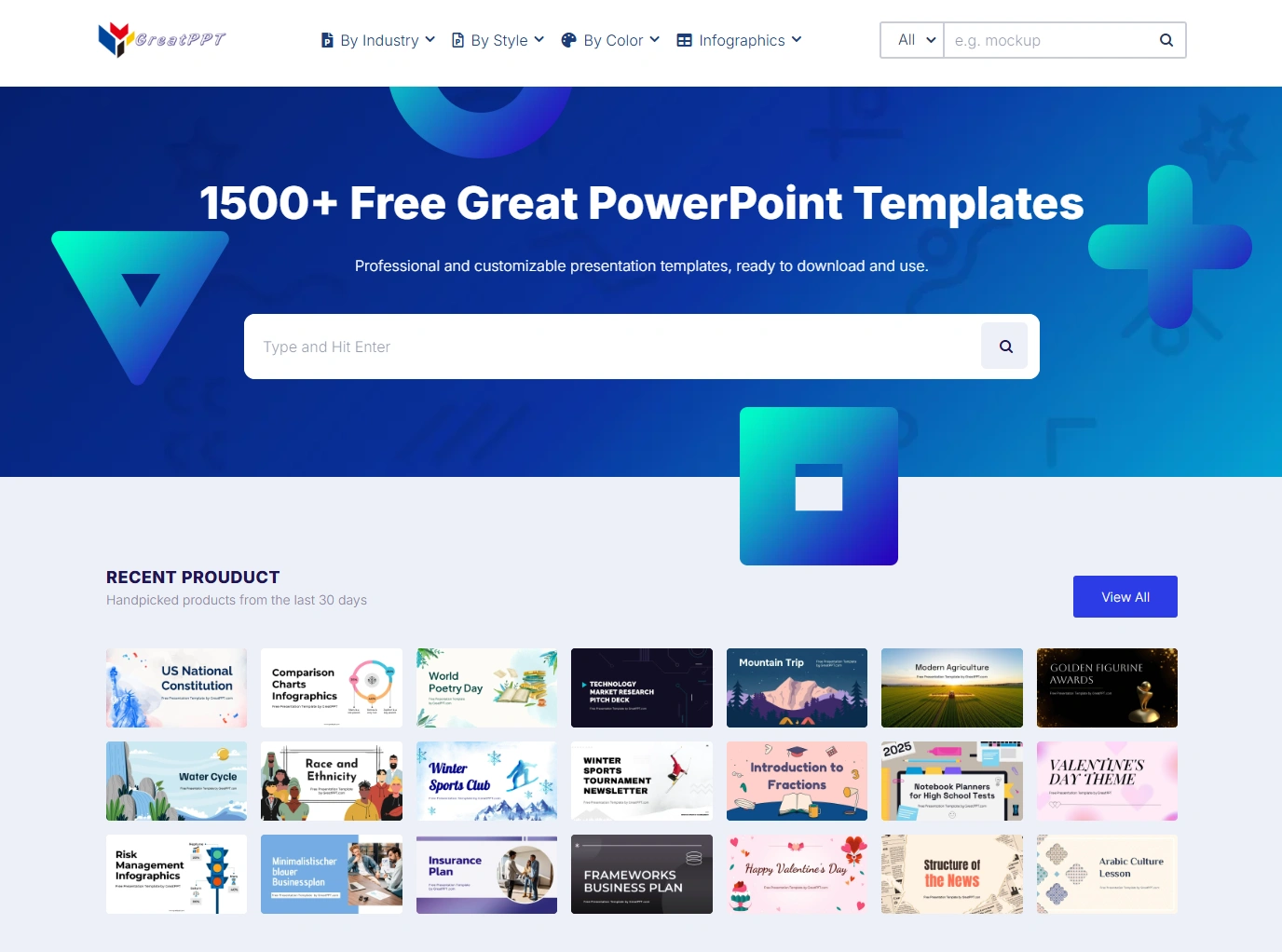
Step 3: Choose a Professional Template (Use GreatPPT)
Design matters more than most people think.
A professional template ensures:
Consistent color scheme
Clean typography
Proper slide layout
Visual hierarchy
Instead of designing from scratch, you can download ready-made templates from GreatPPT.com.
Why Use GreatPPT?
Free business templates
Education presentation templates
Startup pitch deck layouts
Marketing report slides
Editable infographic and chart slides
Using a professional template instantly improves credibility and saves hours of formatting work.
How to Use a Template
Visit GreatPPT.com
Choose a category or search the template you want
Download the template
Replace placeholder text with your content
Keep the structure — just modify the content.
Step 4: Add Charts and Visual Data
Visual data increases audience understanding dramatically.
Instead of writing:
“Our sales increased over the past year.”
Show it using a chart.
When to Use Different Charts
Bar chart → Compare categories
Line chart → Show trends
Pie chart → Display proportions
Timeline → Show progress
GreatPPT provides editable chart slides that make this process easier.
Use AI to Extract Insights
If you have raw data, paste it into ChatGPT or Gemini and ask:
Summarize this data into 3 key insights for a presentation slide.
AI helps you identify patterns quickly, but you must verify accuracy.
Step 5: Apply Simple Design Principles
Good design is simple.
Follow these rules:
1 Slide = 1 Idea
Never overload slides with multiple concepts.
Use Large Fonts
Minimum:
Title: 32–44 pt
Body: 24–28 pt
Keep Colors Consistent
Use 2–3 primary colors max.
Use Visuals Over Text
Icons, charts, and diagrams improve retention.
Minimal slides look more professional than crowded slides.
Step 6: Improve Your Speech with AI
Your slides are only part of the presentation. Delivery matters.
Paste your speech script into ChatGPT and ask:
Improve this presentation speech to sound more confident and persuasive.
You can also ask Gemini:
What questions might the audience ask about this topic?
This helps you prepare for Q&A sessions.
Common Mistakes to Avoid
Here are the most common PPT mistakes:
Too much text
Small unreadable fonts
Low-contrast colors
Inconsistent design
Reading slides word-for-word
No clear conclusion
If your slide looks like a document, simplify it.
Final Presentation Checklist
Before presenting, ask yourself:
Is my objective clear?
Are slides clean and readable?
Are charts easy to understand?
Did I rehearse at least twice?
Is my call to action clear?
If yes — you’re ready.
How Long Should a PPT Be?
5–10 slides → Short presentation (5–10 min)
10–20 slides → Standard business presentation
20+ slides → Detailed report or workshop
Focus on clarity, not slide quantity.
Conclusion
Preparing a professional PPT doesn’t have to be difficult.
Follow this process:
Define your goal
Create a clear structure
Use professional templates from GreatPPT
Add visual charts
Use AI tools like ChatGPT and Gemini to refine content
By combining structure, design, and AI tools, you can create high-quality presentations in less time — even if you’re not a designer.