
How to Create Presentations with AI in 2026! (Guide for Beginners)
in Presentation Tips on January 27, 2026Making slides is arguably one of the most tedious tasks in the professional world. Whether it’s a sales deck, a project briefing, or a quarterly report, nobody actually enjoys staring at a blank PowerPoint template.
But here’s the good news: if you use AI the right way, you can whip up a pro-level presentation in a few minutes rather than a few hours. Based on the latest workflows, here is your guide to mastering the AI presentation game.
1. Pick Your Weapon: Standalone vs. Integrated
There are two main ways to approach AI-driven presentations. Your choice depends on how much you like your current software.
The Native Add-on (Plus AI): If you’re a die-hard Google Slides or Microsoft PowerPoint user, don’t switch apps. Tools like Plus AI work as a layer inside the apps you already know. You get AI power without having to learn a new interface.
The Modern Canvas (Gamma App): This is currently a fan favorite. Gamma doesn’t just make slides; it creates fluid, visually stunning “decks” that look great on any screen. It’s flexible, user-friendly, and handles image placement like a pro.
The Specialist Tools: * Presentations AI: Best for unique, highly animated designs where every slide feels different.
Slides Go: Great for quick, free templates from a single prompt.
Sendsteps: The go-to for teachers or presenters who want live interactive Q&A slides.
2. The “Perfect Prompt” Framework
AI can’t read your mind (yet). If you give it a lazy prompt like “Make a deck about whales,” you’re going to get a boring, generic result. To get something usable, your prompt needs these five pillars:
Type & Goal: “Create a 12-slide pitch deck for investors to secure seed funding.”
The Audience: “The audience is venture capitalists who value data and scalability.”
Tone & Style: “Use a professional, clear, and persuasive tone.”
The Content Outline: If you have specific points, list them. AI works best when it has a roadmap.
Visual Instructions: Mention if you want it minimalist, high-contrast, or image-heavy.
3. The “Pro” Workflow: The ChatGPT-to-Gamma Pipeline
If you want a presentation that actually has depth, don’t let the presentation builder write the text. Use this three-step “Deep Research” workflow instead:
Phase A: The Heavy Lifting
Start in ChatGPT (using a model like o1 or GPT-4.5). Don’t ask for slides yet. Ask it to perform “Deep Research” on your topic and write a comprehensive article based on a detailed outline.
Phase B: The Conversion
Once the article is polished, tell ChatGPT: “Now, provide this article as a .docx file for download.”
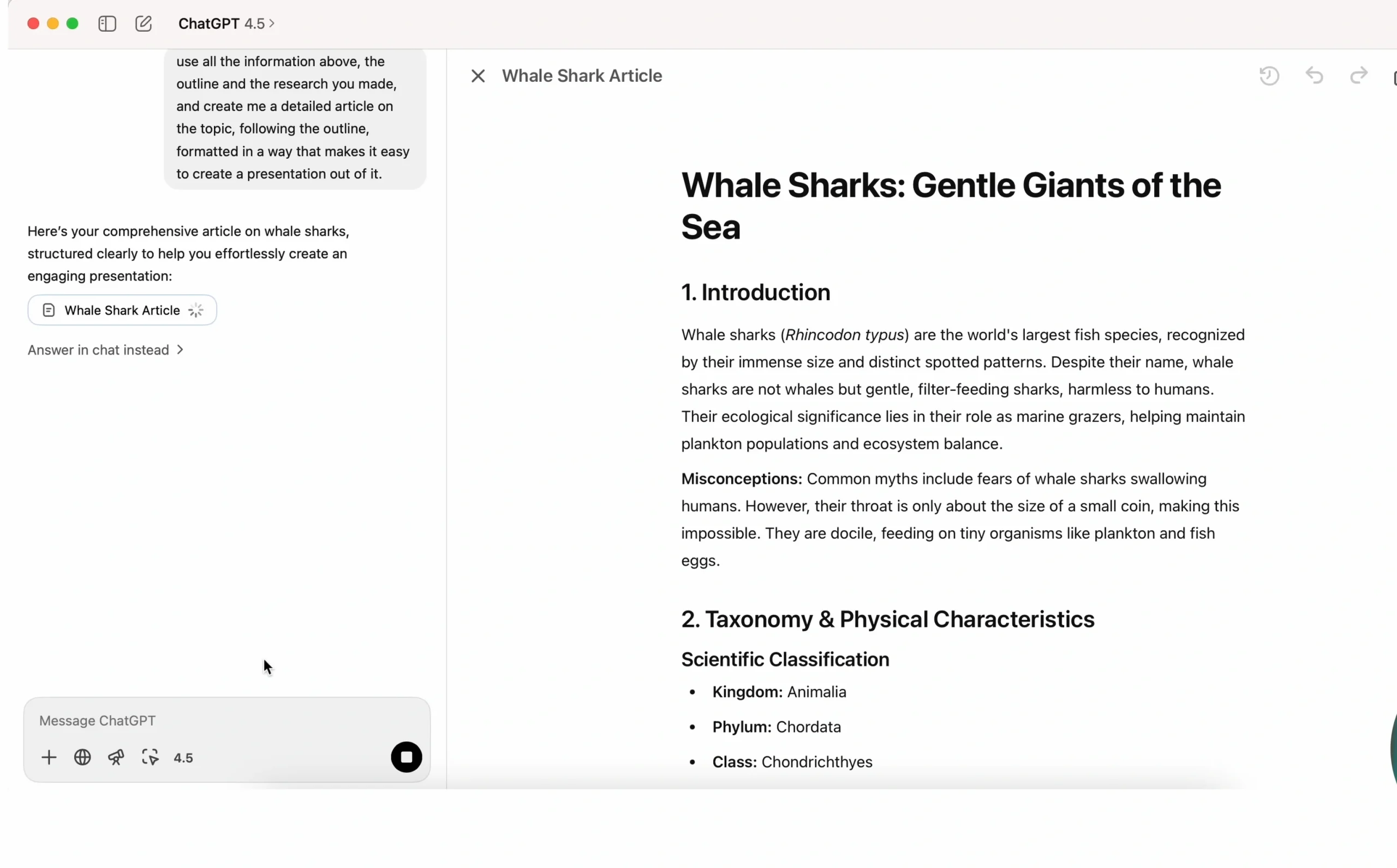
Phase C: The Execution
Take that Word document and import it into Gamma App. Select “Import File” and let the AI figure out the slide breaks. Because you provided high-quality research, the slides will be substantive, not just fluff.
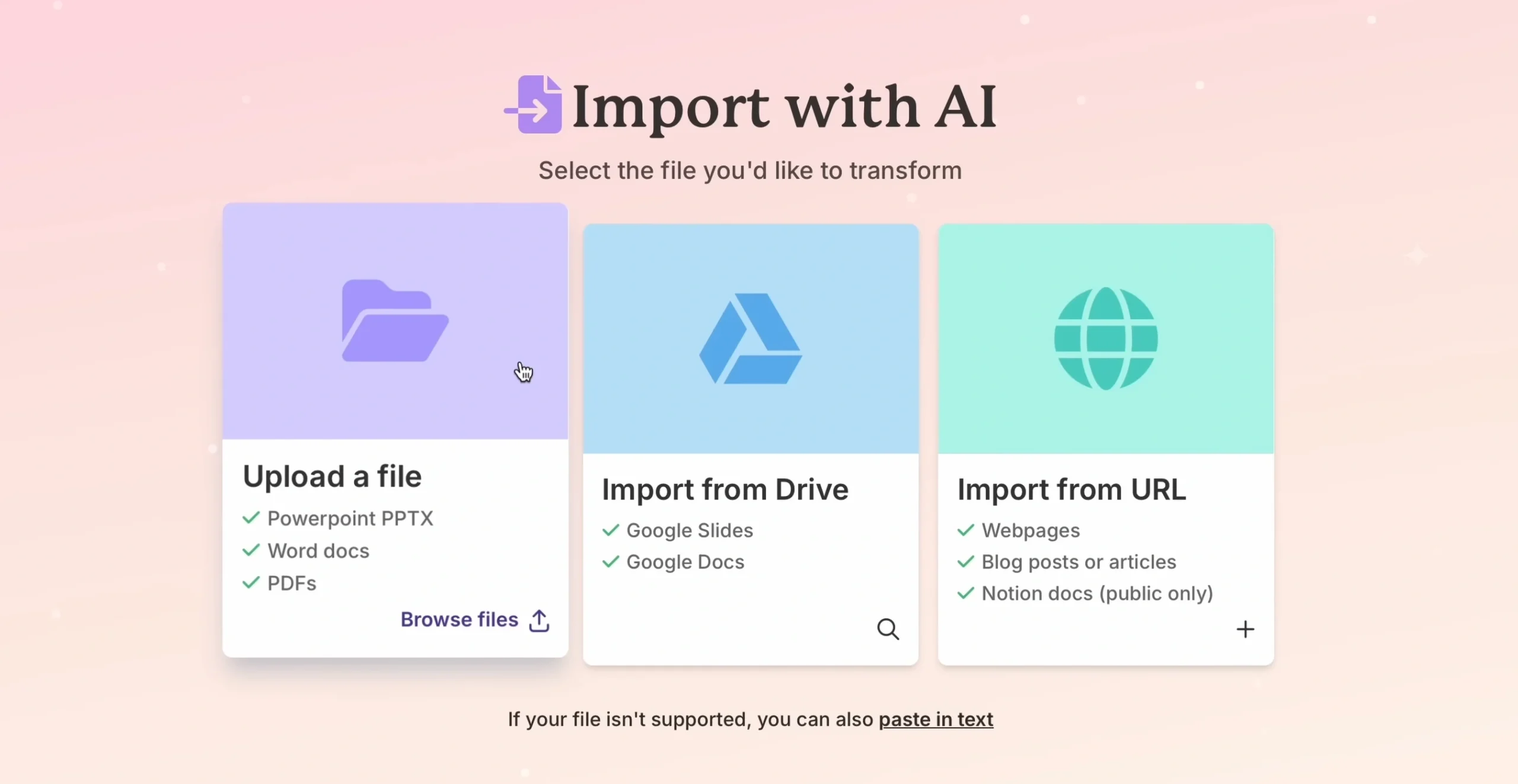
4. Final Polishing
AI is great at layout, but it’s occasionally “meh” at picking the perfect image.
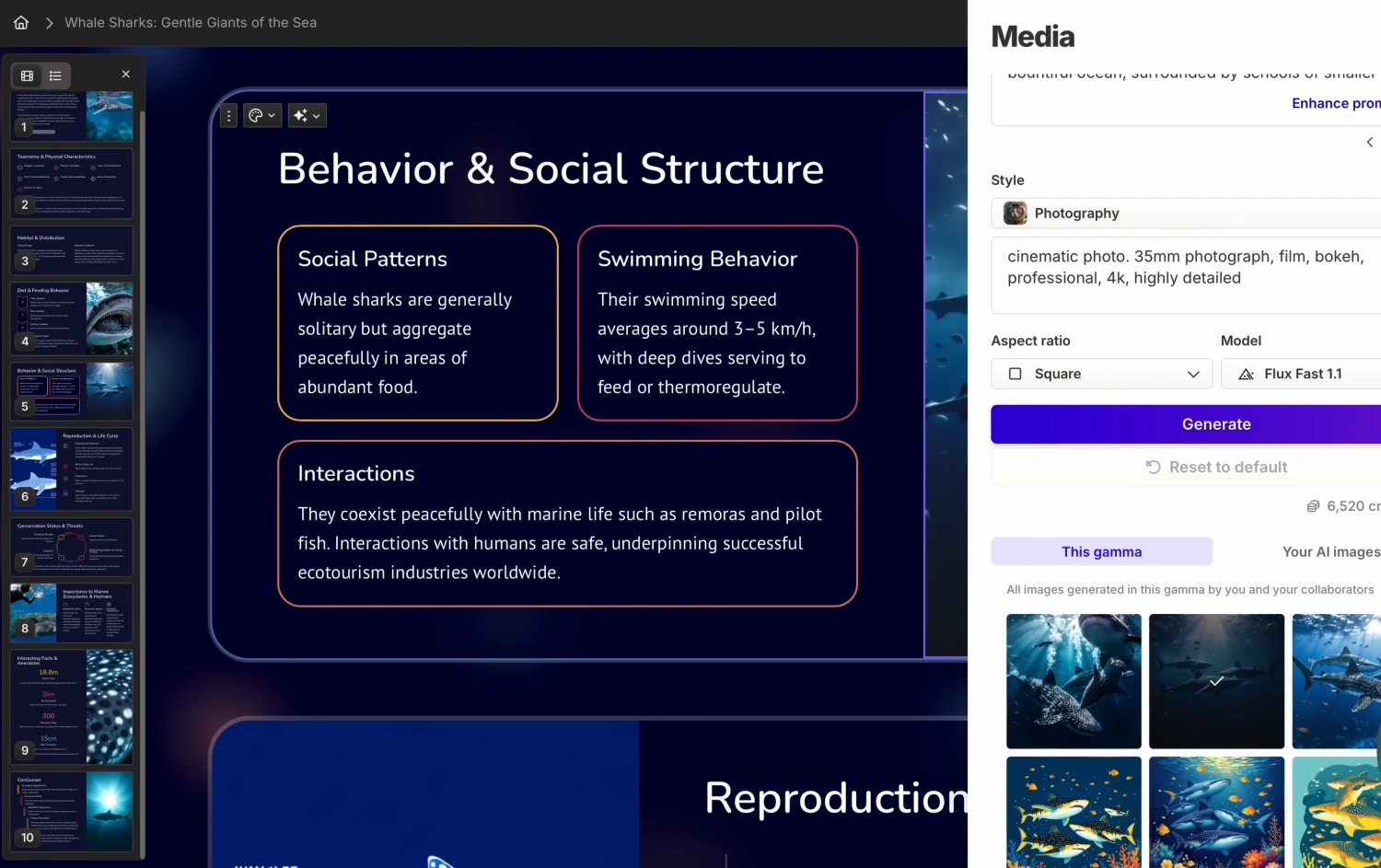
Tip: If the stock images look generic, use an AI art generator or find high-res photos yourself to swap them out.
Structure: Always manually add a custom Title slide and a “Thank You/Contact” slide to give it that human touch.
The real power of AI in presentations isn’t just “generating content”—it’s the ability to restructure information instantly. Being able to pivot from a long-form document to a visual deck in seconds is the ultimate productivity hack.